Status Bar

| Contents | Search | Support | Jarte Home |
|
Status Bar |
|
| Contents | Search | Support | Jarte Home |
|
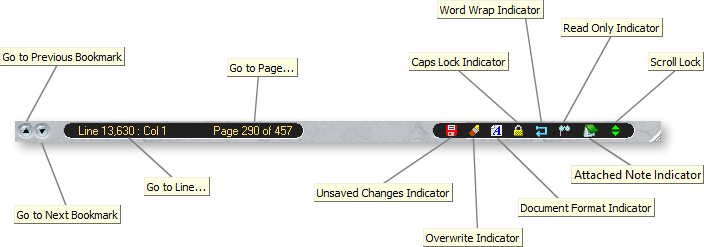
Bookmark Buttons See Using Bookmarks. Line and Column Indicator / Word Count Indicator Indicates the line number and character position of the text cursor in the current document. Click this indicator to go directly to a specified line number within the document. The line and column number indicator can converted to a word count indicator by right clicking the status bar and enabling the Enable Word Counting option. Note that the status bar's word counting feature requires more system resources, especially for large documents. The text color of these indicators can be changed by right clicking the status bar and selecting Status Color from the menu. Indicates the page number of the position of the text cursor in the current document, as well as the total number of pages in the document. Click this indicator to go directly to a specified page within the document. This indicator displays "No Printer" if Jarte does not find a printer installed on the computer. The indicator displays "Printer Problem" if Jarte encountered an error while trying to communicate with the printer to obtain information needed for page counting. In either of these cases, click the indicator for more information. Right click the indicator to access a pop-up menu that allows page counting to be turned off. This will also turn off the display of soft page breaks in the editing pane. It can also help Jarte run more efficiently on older computers when working with large documents. The indicator will display "Page Count Off" while in this state. The text color of this indicator can be changed by right clicking and selecting Status Color. Tip: Go to Next Page and Go to Previous Page commands can be assigned to custom shortcut keys or to custom Quick Barn buttons. This indicator is lit when the current document contains any changes that have not been saved. Note that unsaved changes also include modifying the document's printer settings or bookmarks. The indicator displays a small stopwatch as part of its icon whenever the auto save feature is turned on. This indicator also serves as a Save button. Click the indicator to save any unsaved changes to the current document. The indicator can be made a clickless Save button by turning on option Clickless Save Button. Indicates whether the document's text cursor inserts or overwrites as you type. Normally, the text cursor inserts the characters you type into the document without overwriting the existing text. If this indicator is lit then the text cursor is in overwrite mode and overwrites the characters immediately to the right of the text cursor as you type. The keyboard's Insert key is used to toggle between insert mode and overwrite mode. Indicates whether the current document is a rich text or plain text document. A rich text document is represented by the The current document's text format can be changed by clicking the indicator. You can also select the text format to be used as the default for all new documents. This indicator is lit when the keyboard's Caps Lock key is toggled on. Indicates the current document's word wrap mode. Click the indicator to change the current document's word wrap mode, or the default word wrap mode used for new documents. This indicator is lit if the current document is "read only". A "read only" document is a document that can opened but not modified. A document can be made a "read only" document by selecting File Properties and checking the "read only" check box. Note that Jarte does not treat the document as "read only" until the next time the document is opened. Indicates the current has an attached note. Click the indicator to edit the note. This indicator is lit when the keyboard's Scroll Lock key is toggled on. When Scroll Lock is enabled the Up and Down arrow keys scroll the current document up and down, rather than moving the text cursor up and down. Advanced option Allow Scroll Lock must be enabled in order to use the Scroll Lock key. Status Bar Options The following status bar options can be accessed by right clicking the status bar: Enable Page Counting - Allows the status bar's page number indicator to be turned on and off. Page counting is enabled by default. Generally, this option is only useful on old computers where disabling page counting might prevent sluggishness while editing large documents. Disabling page counting is also useful for people who prefer not to see page break indicators while editing their documents. Note that a document's page count can be still be obtained by the word count feature even when page counting is disabled. Enable Word Counting - When this option is enabled Jarte displays a continuously updated word count in the status bar in place of the line and column number indicators. This option is only available in Jarte Plus. The word count can also be obtained manually using the word count feature. Use Text Status Bar - This option is used to display the status bar as a traditional text based status bar for people who prefer that style. Status Color - Provides a choice of text colors for the status bar's text. |

 Carolina Road Software
Copyright © 2001-2017 Carolina Road Software L.L.C. All rights reserved.
 icon and a plain text document is represented by the
  icon.
icon.